

When someone near you searches for what you do, Google usually shows a map with three businesses before it shows a single website. Your Google Business Profile is how you get into that box. It's free, it takes an afternoon, and a lot of them are only half filled in.
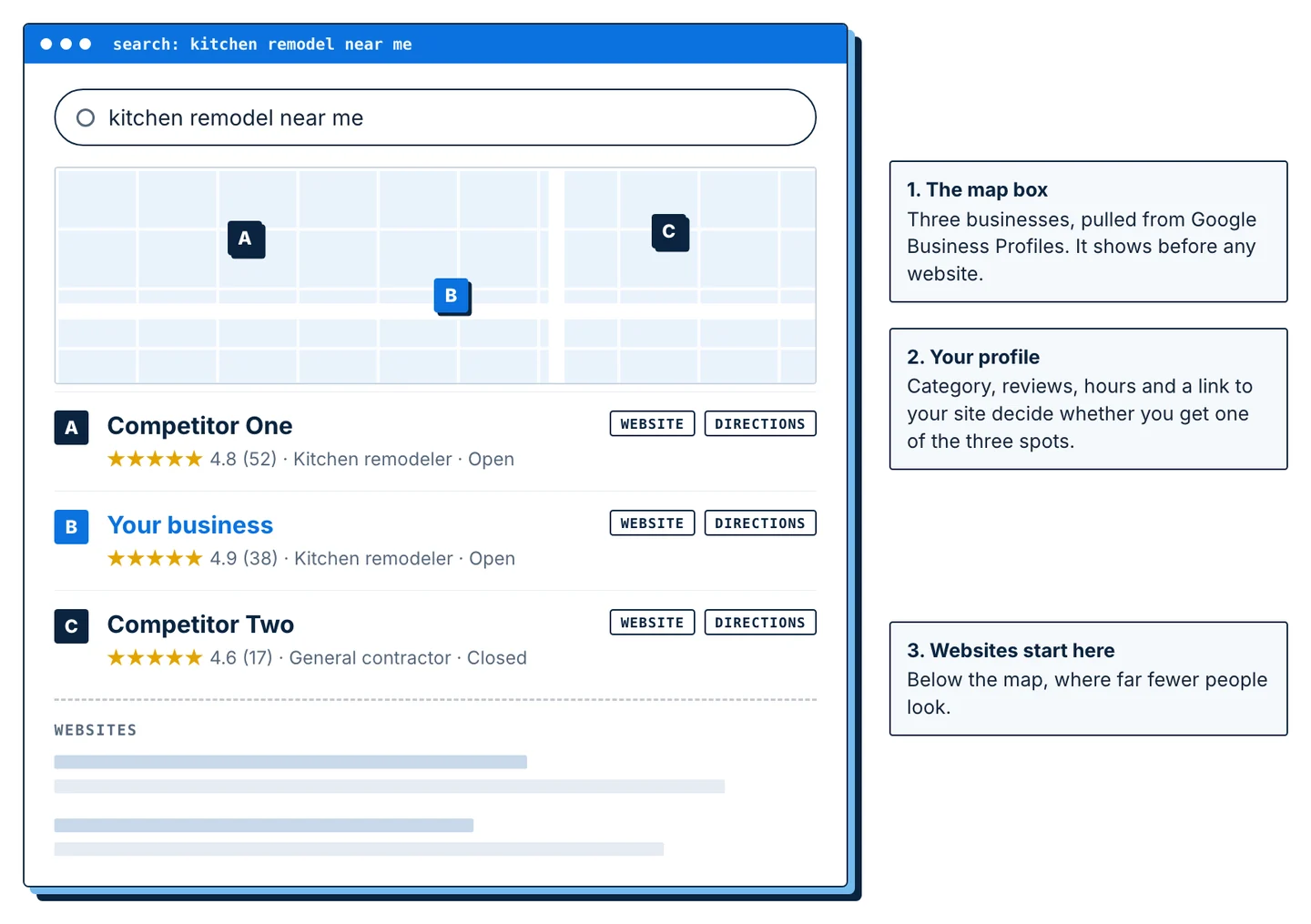
For Burke Black Design Build, a remodeler in Chicago I work with, about 75 people looked at the Google listing over three months. About 20 visited the website in the same stretch. For a local business that's normal: the listing gets seen first. So it should be complete, and it should say the same thing your website says.
Here's how I set one up, step by step, and how to give someone access without giving the profile away.
Step 1: Find out if you already have one
Search your business name and city on Google Maps. Google sometimes creates a profile on its own from public information, and old ones stick around after an agency or an ex-employee set them up.
- If you see your business with "Own this business?" or "Claim this business", click it and follow the steps.
- If you see it but someone else already manages it, jump to "If someone else owns your listing" below.
- If nothing shows up, go to business.google.com and add your business.
Use a Google account you'll always have. A business Gmail or your company's Google Workspace account is best. Not a personal account you might lose, and never an employee's.
Step 2: Verify it
Google won't show a new or newly claimed profile until you prove the business is real. Google picks the method, not you. These days it's usually a short video: your signage or storefront, your workspace or tools, and something that shows you run the place. Some businesses get a phone, text or email option instead.
Review can take anywhere from a few minutes to a couple of weeks. While you wait, don't change the name, address or category. Edits during review can start it over.
Step 3: Pick your main category carefully
Your primary category is the biggest thing you control in whether you show up for a search. Pick the one that describes your main service as narrowly as possible: "Plumber", not "Contractor". Then add a few secondary categories for the other things you really do.
Not sure which to pick? Search your main service and your city on Google Maps and look at the top three businesses. Their main category shows right under their name. That's what Google already connects to that search.
Step 4: Fill in everything
Google favors complete profiles, and so do customers. Go through every field:
- Name: exactly what's on your sign and your website. No extra keywords like "Best Plumber Chicago". That's the fastest way to get suspended.
- Address or service area: if customers come to you, show the address. If you go to them, set a service area and hide the address.
- Phone: a number someone answers. The same one that's on your website.
- Website: your home page, or the page for that location if you have more than one.
- Hours: including holiday hours. Wrong hours lose trust faster than no hours.
- Services: each one with a sentence or two, named the way customers search for it.
- Description: up to 750 characters. What you do, who for and where, in plain words. The first couple of lines matter most, because that's what shows before "more".
- Opening date and attributes: fill in whatever applies, like wheelchair access or online appointments.
Step 5: Make it match your website
This is the step most people skip. Google trusts a business more when the profile, the website and every directory listing say the same thing. So do customers.
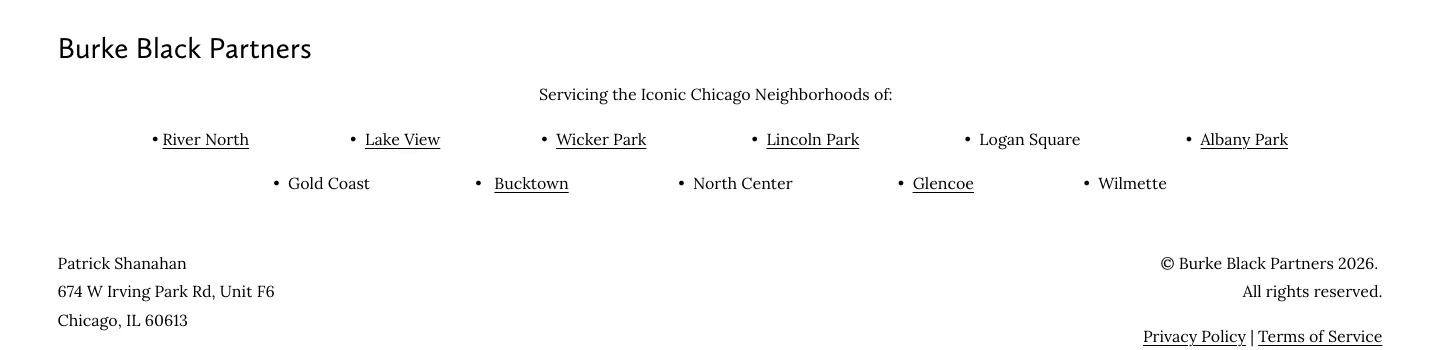
For Burke Black, the profile lists the same services as the website and the same Chicago neighborhoods they work in. The website footer lists those neighborhoods too, and most of them link to a real project there. Someone who finds the listing and clicks through lands on proof in their own part of town.
What to check on yours:
- Name, address and phone: the same on your site and your profile. Pick one way to write things, "Suite 4" or "#4", and use it everywhere.
- Services: the same list with the same names.
- Hours: the same everywhere.
- Areas: if your profile says you serve five towns, your website should mention them, ideally with a page or a project for each.
Step 6: Add real photos
Add your logo, a cover photo, and photos of your work, your team and your space. Real photos from your phone beat stock every time. A finished project with the neighborhood in the caption does more than a perfect stock photo of a smiling contractor. Add a few new ones every month. It shows the business is active.
Step 7: Ask for reviews, and answer every one
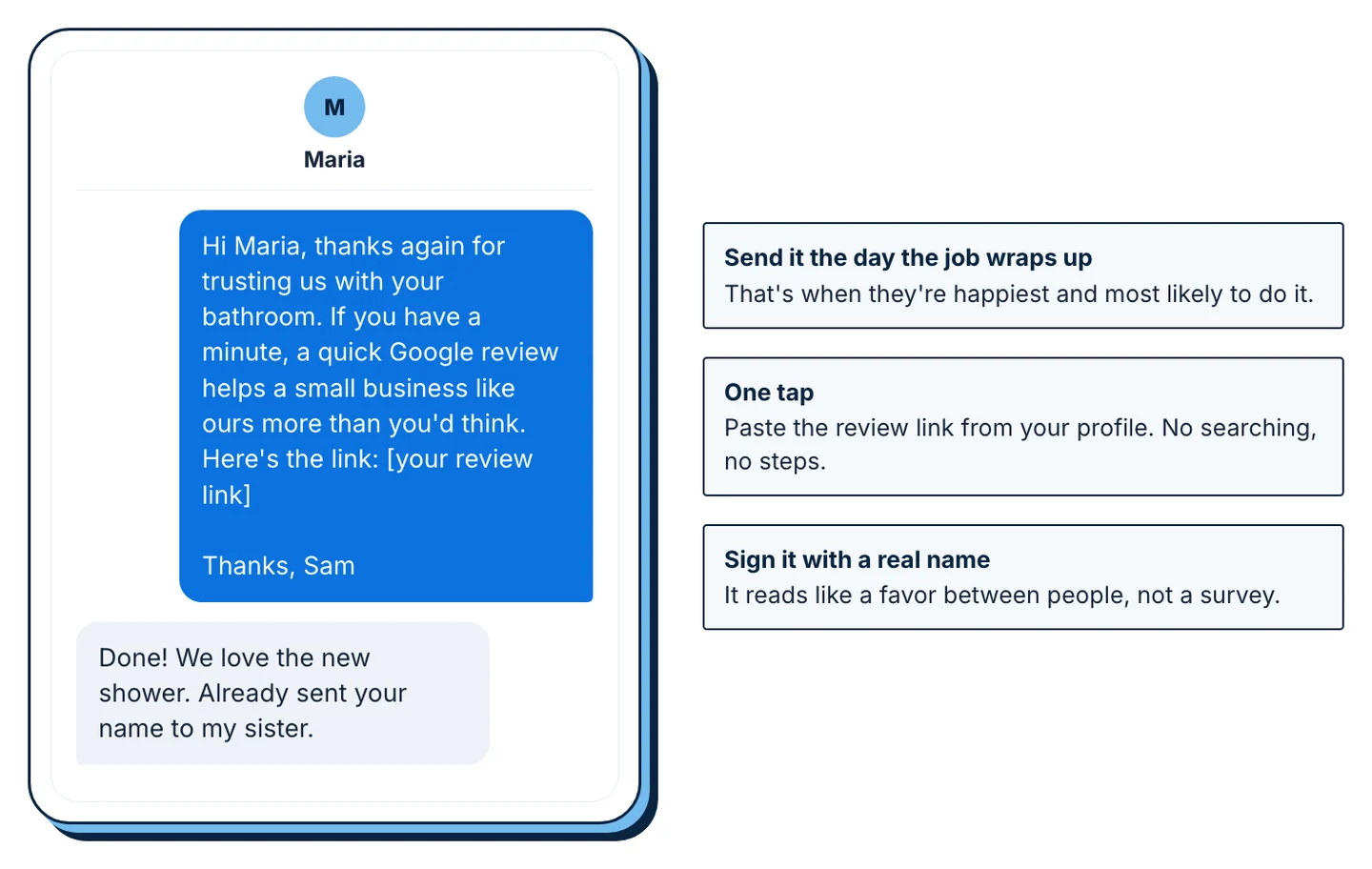
Reviews are the other big lever for showing up on the map, and the first thing people read. The trick is asking at the right moment: right after a win, when the customer is happiest. A finished job, a delivered order, a problem solved.
- Get your review link from your profile (look for "Ask for reviews") and send it by text or email, so leaving one is a single tap.
- Ask every customer, not just the ones you're sure loved it.
- Reply to every review, good and bad, within a few days. Short and specific.
- Never pay for reviews, trade discounts for them or write them yourself. Google removes them and can suspend the profile.
Step 8: Post updates
Your profile has a section for updates, like a small social feed. Post a finished project, an offer or a seasonal note once or twice a month. It won't make or break your ranking, but it gives people something current to look at and another reason to click through to your site.
How to add a manager without giving the profile away
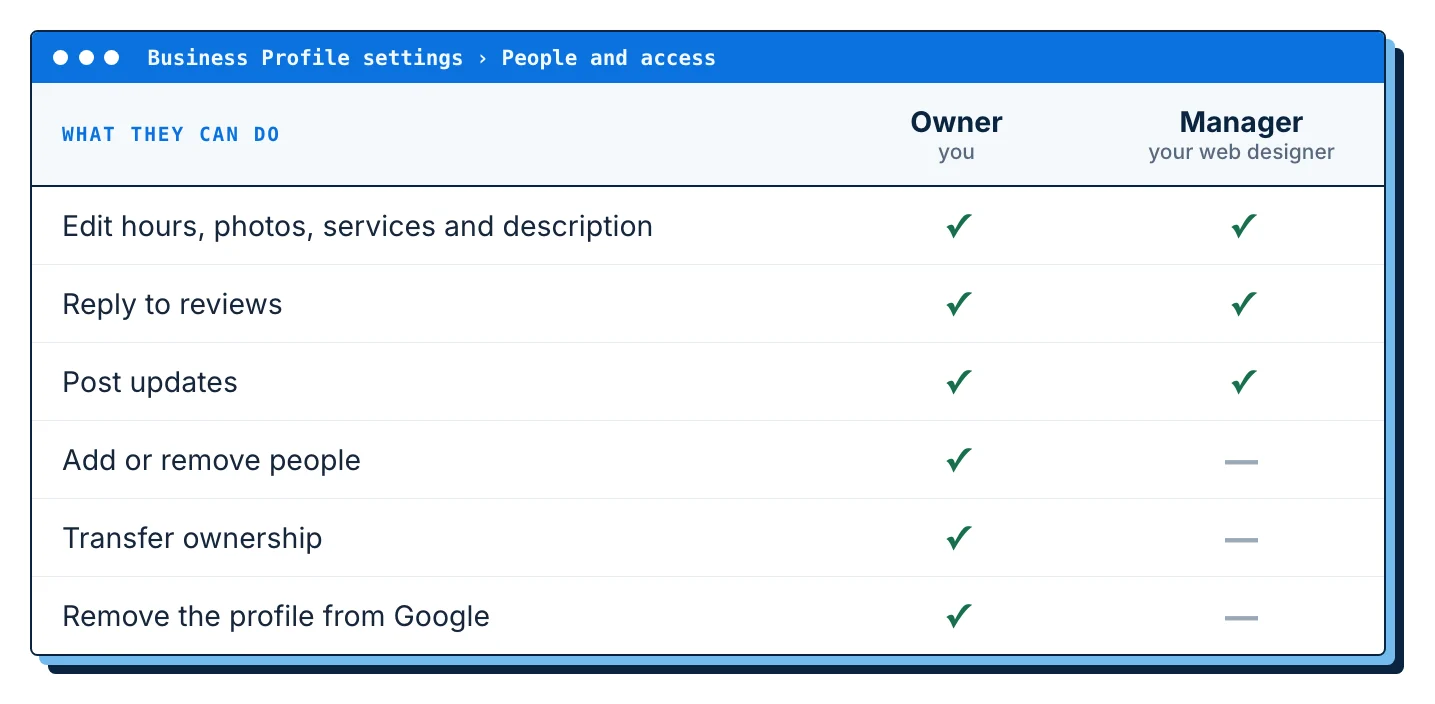
At some point someone else will need access: your web designer, your marketing person, an assistant. Don't share your Google password. Add them as a user instead, so you stay in control and can remove them any time.
- Sign in to the Google account that owns the profile and search your business name. Your profile's edit panel shows at the top of the results.
- Open the three-dot menu and choose Business Profile settings, then People and access.
- Click Add, enter their email address, and choose Manager.
- They accept the invitation from their inbox.
A manager can edit almost everything and reply to reviews. An owner can also add or remove people and delete the profile. Stay the primary owner yourself. Only add another owner if it's a business partner you'd trust with the keys to the building.
If someone else owns your listing
This happens a lot. An old agency, a former employee or a relative set it up years ago. Search for the business, click Claim this business, and Google will offer to request access from whoever owns it now. If they don't respond, Google may let you verify and claim it yourself after a waiting period. Start this early, because it can take a while.
Mistakes that get profiles suspended
- Keywords stuffed into the business name.
- A PO box or virtual office as your address.
- Two profiles for the same business at the same place.
- Changing the name, address and category all at once right after verifying.
- Fake or paid-for reviews.
What to do this week
- Search your business on Google Maps and claim it, or find out who owns it.
- Pick your main category by checking the top three results for your service and city.
- Fill in every field, and make your name, address, phone, services and hours match your website.
- Add ten real photos.
- Text your review link to three recent happy customers.
If your profile is in good shape and you still don't show up, the problem might be your website instead. I wrote about telling those two apart in why your business doesn't show up on Google. If people find you but don't call, start with the words on your site: how to write website copy that turns visitors into customers.
Check whether your listing and your site match
Whether your Google listing and your website tell the same story is one of the ten questions on my free website gap checklist. It takes five minutes and shows you what to fix first.
The Website Gap Checklist
Find out in five minutes why your website isn't bringing in customers, and know exactly what to fix first so more visitors call, book and buy.
Your checklist is downloading.
Didn't start? Download the PDF here.
Rather have it checked for you? Run the free website gap checker on your site.