

A new website can quietly erase years of Google rankings. Usually not because the new site is worse. It's because page addresses change, settings get left behind, and Google loses track of what used to rank.
The good news: it's preventable. It takes a spreadsheet, an afternoon, and a few checks on launch day. Here's how.
Two small files that matter more than the design
Before any of the steps, know the two files Google leans on: robots.txt, which says what it may read, and your sitemap, which lists every page. A rebuild can leave either one wrong, and nothing on the site will look broken.
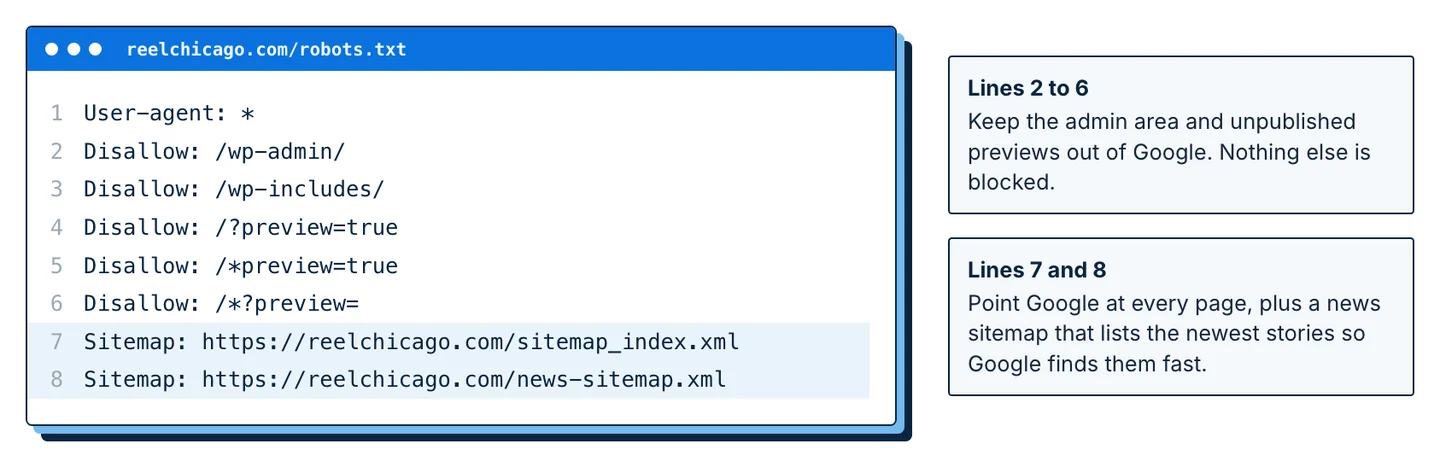
I've fixed this on a site that wasn't being rebuilt at all. Reel Chicago, a news site, had stopped showing up for its new stories because its Google News sitemap was missing and its robots.txt didn't point to one. With both in place, new articles were ranking near the top again within three days. Nothing about the writing changed. Here's its robots.txt today:
Why a rebuild loses rankings
Google ranks pages, not businesses. Each page has an address, and everything that page earned (its position, the links pointing at it, people's bookmarks) is tied to that address. A rebuild can break that in a few ways:
- Addresses change, like /services.html becoming /services, and nothing forwards the old one.
- Pages that ranked get cut or merged because they looked old.
- Titles and headings get rewritten and lose the words people searched for.
- A "don't index this site" setting from the build stays on after launch.
- The robots.txt file or the sitemap gets left behind, or set up wrong.
Step 1: List the pages that matter, before you touch anything
Open Google Search Console, go to Performance, choose the last 12 months and click the Pages tab. Sort by clicks. Every page with real clicks goes on your list. Add any page you know other sites link to, and anything people bookmark, like a menu or a price list.
If you don't have Search Console, your old sitemap (usually at yoursite.com/sitemap.xml) lists every page. Save a copy before the old site goes away.
Step 2: Decide where each one goes
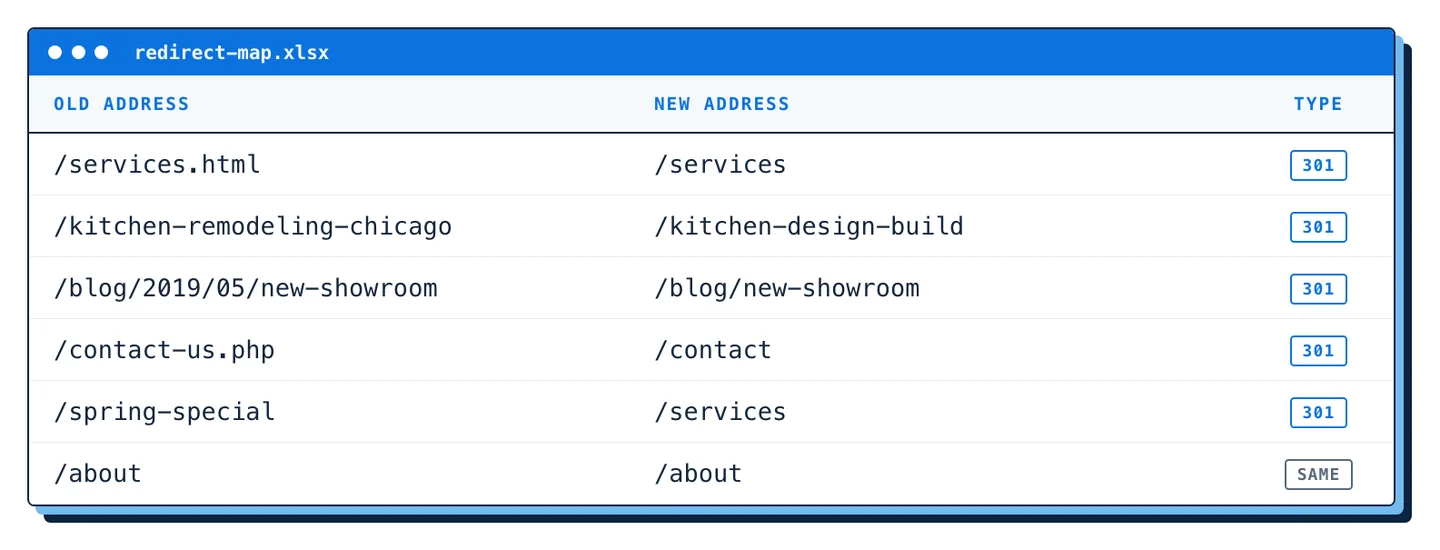
Put the list in a spreadsheet with two columns: the old address and the new one. Keep the same address wherever you can. Where you can't, point the old page at the closest new page, never everything at the home page.
301 redirects, in one paragraph
A 301 redirect is a permanent forwarding address. Anyone who visits the old page, person or Google, lands on the new one, and the new page keeps most of what the old one had earned. On WordPress, a redirect plugin or your SEO plugin can set them up. Squarespace has URL mappings in its settings, and Shopify has URL redirects. Set them up before launch, not after people start hitting error pages.
Step 3: Keep what made the old pages rank
If a page ranked, something on it was working. Before you rewrite it, look at what it said. Keep the topic, the words people searched for, and anything that answered a real question. Make it better and clearer, but don't trim it down to two lines because the new design looks cleaner that way.
Step 4: Launch day checks
- Turn off "Discourage search engines from indexing this site" in WordPress, under Settings, then Reading. It's one of the most common launch-day mistakes.
- Open yoursite.com/robots.txt and make sure it isn't blocking the whole site.
- Submit the new sitemap in Search Console.
- Paste ten of your old addresses into the browser. Every one should land on the right new page.
- Check the new site on your phone, and send yourself a message through every form.
Step 5: Watch Search Console for a month
Check the Pages report every week for a month after launch. Look for pages marked "Not found (404)", which means a redirect is missing, and compare your clicks with the month before. A small dip for a week or two is normal while Google catches up. A big drop means something is blocked. Go back to Step 4.
If you're not sure whether Google can see your site at all, start with why your business doesn't show up on Google. And once the new pages are live, run them through the on-page SEO checklist.
Check a page on your new site
The free SEO page audit checks whether Google can read a page, what it thinks the page is about, and what to fix first. Run it on your most important pages the day you launch.