

If your website is going to take orders or bookings, someone has to connect it to a payment account. That makes people nervous, and then they do the riskiest thing possible: they text their password to the developer.
There's a better way, and it's the same one you'd use for any account. This post covers access only. Which provider to use, what it costs and how you handle money are decisions for you and your own advisers.
The account is yours
Open it yourself, in your business's name, with an email you'll always have. If a developer or agency opens it, they control it. That's true of your domain and your hosting too.
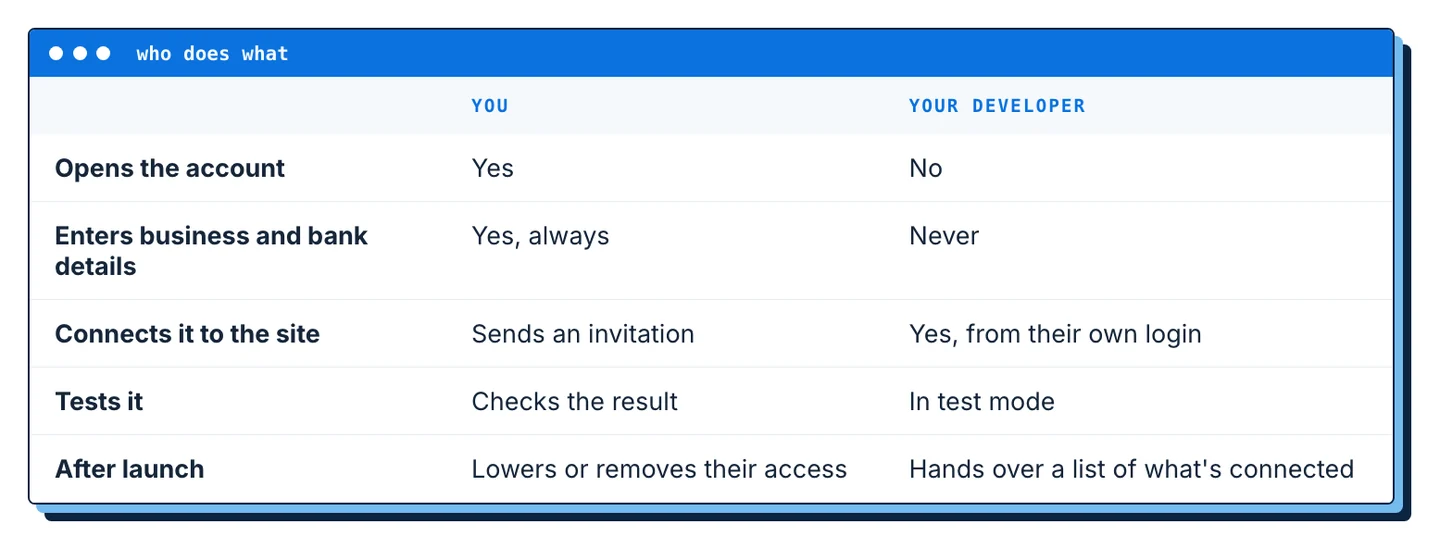
Never send these
- Your password.
- A one-time code.
- Your bank details or ID documents.
- A secret key, by email or text.
A good developer won't ask for them. If someone does, stop.
Invite them instead
Look in the account's settings for a section called Team, Users or Permissions. Add your developer's own email and choose a role. Providers describe what each role can see and do, so read that page and pick the smallest one that lets them do the work. They log in as themselves, and you can see what they did.
Ask how the connection is made
Most connections are one of two kinds. Either the website plugin asks you to log in and approve it, which you can do yourself while your developer watches, or it needs keys, which your developer creates from their own login and stores on the server. Keys should never be in an email, a shared document or the page's code.
Test before anyone can buy
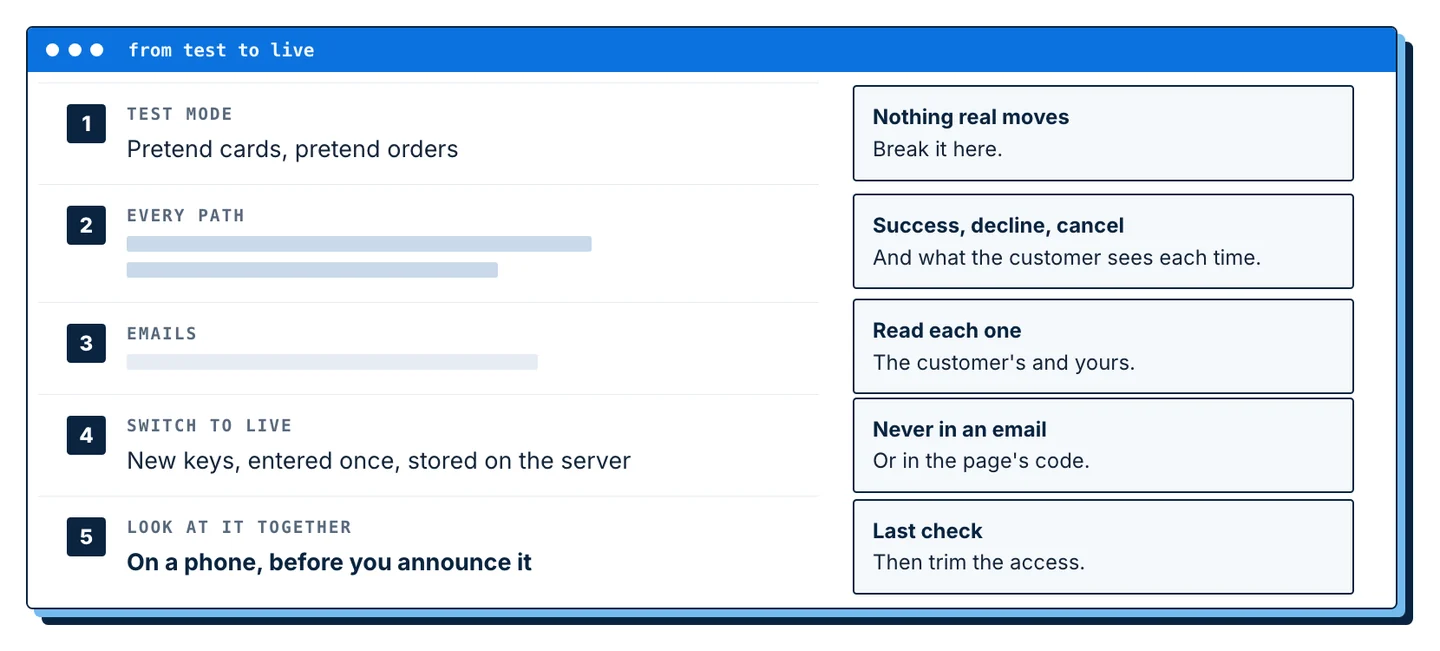
Most providers have a test mode. Ask your developer to show you three things in it: an order that goes through, one that's declined, and one that's canceled halfway. Read what the customer sees each time. Those messages are part of your website.
Close the door afterward
- Remove your developer, or move them to the smallest role.
- Ask for a list of everything that's connected.
- Turn on two-step login.
- Make sure notices go to an inbox someone reads.
Same idea, other accounts
The same steps work for WordPress, your domain, your hosting and Google. If you're taking bookings too, set up your services and hours first.